Integrate SmartFTP with IDrive® e2
SmartFTP is a Windows file transfer client that supports secure FTP, SFTP, FTPS, WebDAV, and S3-compatible cloud services for streamlined data management. With features such as transfer resume, synchronization, scheduling, and integrity checks, it enables efficient handling of remote and cloud-stored files. Integrating SmartFTP with IDrive® e2 provides a capable, scalable cloud object storage solution that effortlessly supports secure, reliable file transfer workflows.
Prerequisites
Before you begin, ensure the following:
- An active IDrive® e2 account. Sign up here if you do not have one.
- A bucket in IDrive® e2. Learn how to create a bucket.
- Valid Access Key ID and Secret Access Key. Learn how to create an access key.
- The latest version of the SmartFTP Client Setup application installed on your machine.
Configure SmartFTP with IDrive® e2
The following instructions and config guidelines can help you configure SmartFTP with IDrive® e2.
- Launch the SmartFTP application.
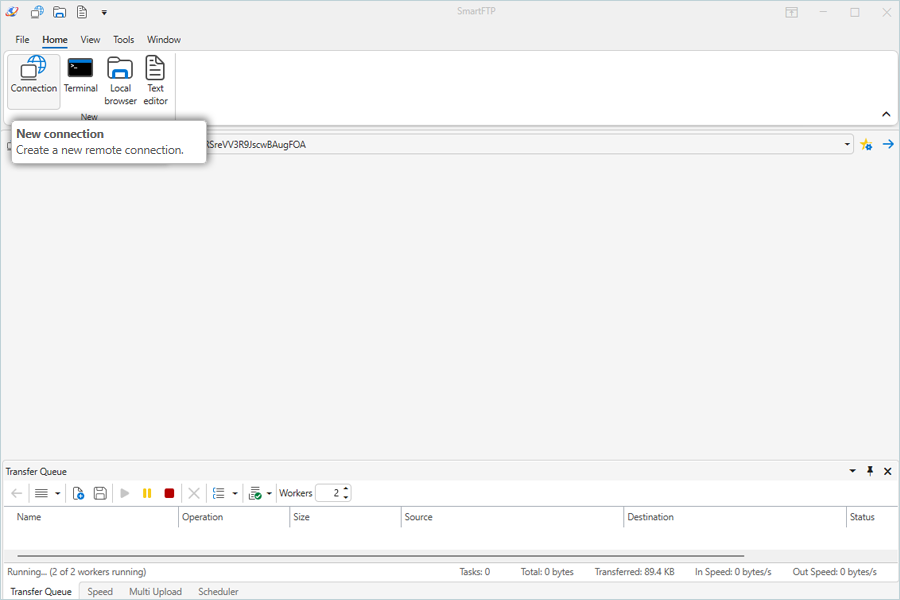
- Click Connection to create a new connection.
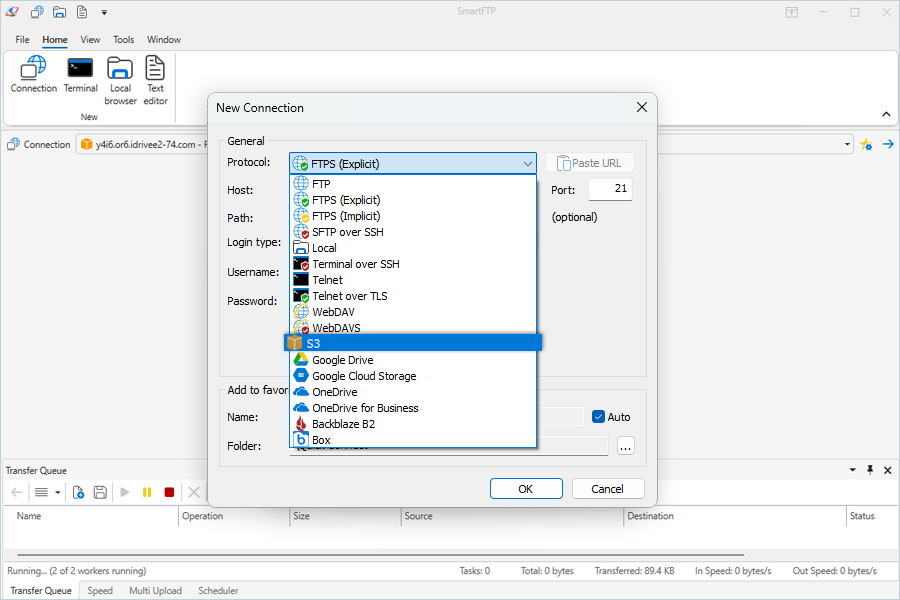
- In the New Connection popup, under Protocol, select S3.
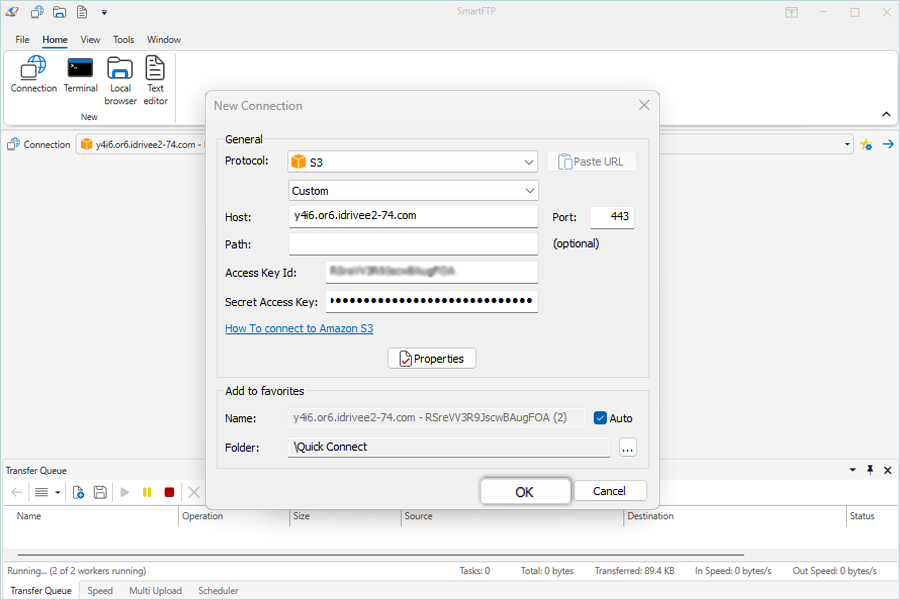
- Enter your IDrive® e2 Endpoint as the Endpoint.
- You can leave the path blank.
- Enter your IDrive® e2 Access key as the Access Key ID.
- Enter your IDrive® e2 Secret key as the Secret Access Key.
- Click OK.
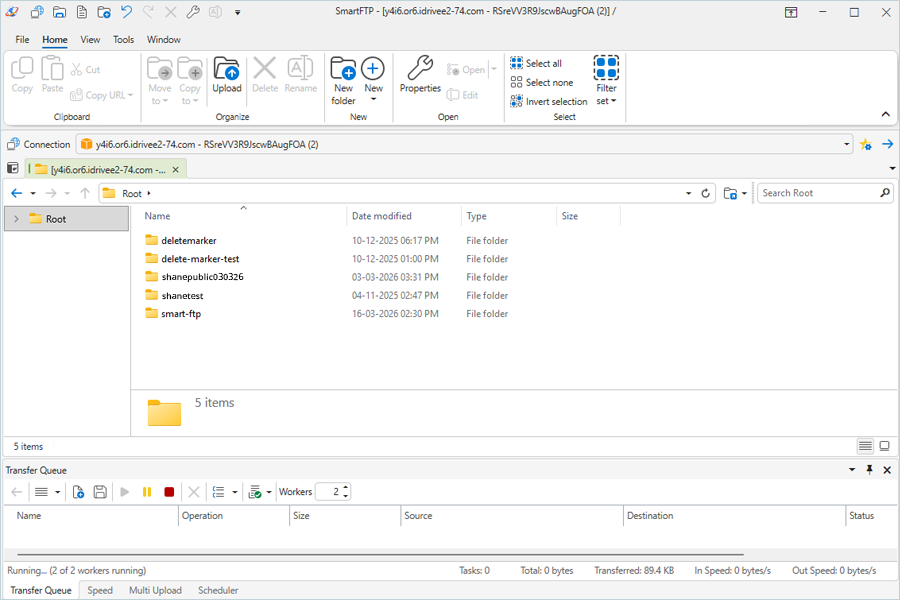
Note: You can now view and access your buckets as a folder.
Note: Data restoration is handled by your specific backup solution provider and is affected by multiple variables that are unique to your environment. For application-related enquiries/support, it is strongly recommended you seek guidance from the technical team of your backup solution provider.